Supplies
Product images
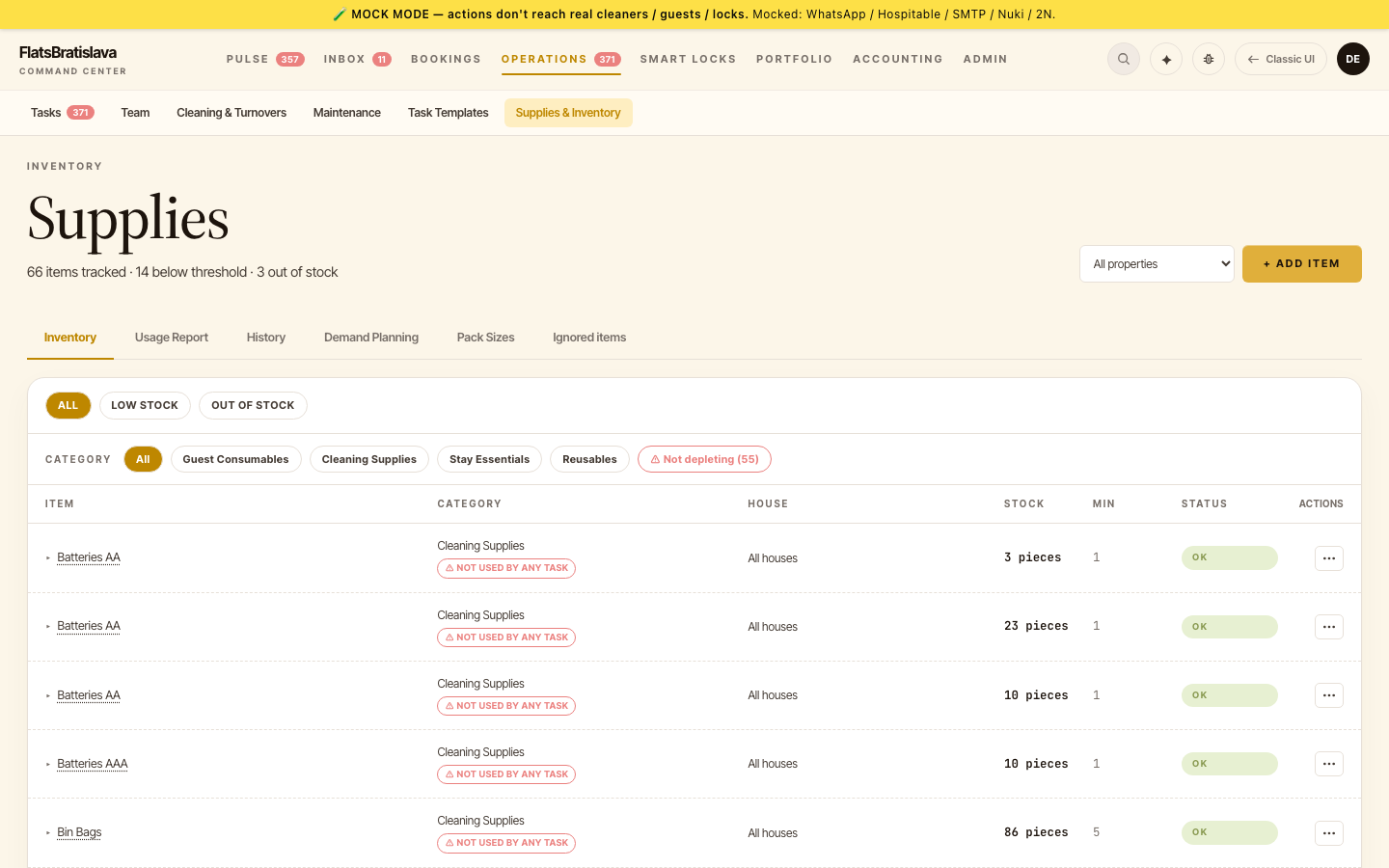
Each supply now carries a product image — visible in Inventory + History, click for a large popup.
Where images come from
Three sources, in priority:
- Manual override — operator uploads a specific image to this supply row.
- LLM-verified auto-fetch — the platform searches the web for the product by name; the LLM verifies the result matches the actual product before saving.
- Placeholder icon — when nothing else is available.
LLM verification
The auto-fetch pipeline:
- Query the product image search (canonical name + receipt-product tokens).
- Fetch top N candidate images.
- Pass each candidate to the LLM vision pass with the product context: "is this a picture of
Coffee Capsules? Does it match the receipt stringCAFISSIMO 70g FINE AROMA?" - First LLM-verified match is saved as the supply's image.
- On reject (LLM says none match) or all candidates fail: leave placeholder + flag row for operator.
An Re-fetch (AI) button per supply re-runs the pipeline — useful when the operator has renamed the supply or the wrong-product image slipped through.
Where the image appears
- Inventory list — small thumbnail per row.
- History timeline — same thumbnail on each transaction row.
- Click any thumbnail → large image popup.
Rejecting a wrong image
Each supply row has a Reject image button. Rejecting:
- Clears the image (row shows placeholder).
- Re-fetch is auto-triggered (
clear-on-reject re-fetch) — the platform tries again with a different query. - If re-fetch is still wrong, operator uploads manually.
Wrong-product safeguard
The auto-fetch query includes the brand + variant seen on receipts (not just the canonical noun), producing images that match what you actually restock.
Source: the luxury.host operator manual.